How to build a Shopify gift guide page that shoppers can actually use
A worked example from start to finish: one imaginary candle shop, three budget tiers, a page template you can reuse every year, and a gift finder made from an ordinary form.
Key takeaways
- Fill the guide from collections rather than hand-picked products, so sold-out items and price changes look after themselves.
- Use one page at one lasting URL such as /pages/gift-guide and refresh it each year, instead of a new page each season.
- Budget is the question gift shoppers can answer fastest, so lead with tiers before you think about a quiz.
- A plain form that sends shoppers to a filtered collection works as a gift finder with no JavaScript, once those filters exist in your admin.
Picture Fern & Wick, an invented candle and home fragrance shop with about 60 products. It's the second week of November. Last year's "gift guide" was a blog post with twelve hand-linked products, and by December four of them had sold out while the post kept sending people to them. The owner wants something that won't need babysitting during the busiest weeks of the year. Here is how that shop would rebuild it, and every step applies to yours.
Step one: choose what shoppers sort by
Gift buyers usually don't know what they want, but they do know how much they'll spend and who it's for. Those two answers shape the page. Fern & Wick lists three kinds of guide and rejects two:
| Shape | Good when | Why Fern & Wick did or didn't choose it |
|---|---|---|
| Budget tiers | Almost always a sound default | Chosen. Prices run from about €12 to €90, a wide enough range to split |
| By recipient | Products clearly suit different people, as in fashion or hobby gear | Used only inside the finder. A candle isn't obviously "for dad" |
| Full quiz | A large catalog where the choice is confusing | Rejected for now. 60 products doesn't need three questions to narrow |
Step two: let collections do the upkeep
The upkeep problem from last year goes away if tiers are automated collections. In Products › Collections, Fern & Wick creates three with two conditions each: product tag equals gift, and price is less than the tier's limit (or between two, using a pair of conditions). Tagging is what keeps a €15 box of matches out of the guide unless the owner wants it there. Prices are checked by Shopify, so a repriced candle moves tiers without anyone touching the page.
Step three: a page template of its own
A gift guide should be a page rather than a collection or blog post, because you need several collections arranged with copy between them. Create the page once at Online Store › Pages with a title like "Gift guide", leaving the URL as /pages/gift-guide. Then, in the theme editor, use the template menu at the top: Pages › Create template, name it gift-guide, and assign it from the page's Theme template setting.
Keep that same URL next year. Links people saved and links other sites gave you keep working, and you only swap sections and copy. Calling the page "2026 gift guide" in its heading is fine, as long as the address doesn't carry the year.
Step four: the budget tier section
Each block below is one tier: a heading, a short note and a collection. The section builds the jump links at the top from the same blocks and skips sold-out products while it fills the row. Products with a single variant get a real add-to-cart button, and anything with options links to its page, since a shopper can't buy "a candle" without picking a scent.
<section id="gift-{{ section.id }}" class="gt">
  <h2 class="gt__heading">{{ section.settings.heading | escape }}</h2>
  {%- if section.settings.intro != blank -%}
    <div class="gt__intro">{{ section.settings.intro }}</div>
  {%- endif -%}

  {%- if section.blocks.size > 1 -%}
    <nav class="gt__jump" aria-label="{{ section.settings.jump_label | escape }}">
      {%- for block in section.blocks -%}
        <a href="#tier-{{ block.id }}">{{ block.settings.title | escape }}</a>
      {%- endfor -%}
    </nav>
  {%- endif -%}

  {%- for block in section.blocks -%}
    {%- assign tier = block.settings.collection -%}
    <div class="gt__tier" id="tier-{{ block.id }}" {{ block.shopify_attributes }}>
      <h3 class="gt__title">{{ block.settings.title | escape }}</h3>
      {%- if block.settings.note != blank -%}
        <p class="gt__note">{{ block.settings.note | escape }}</p>
      {%- endif -%}

      {%- if tier != blank -%}
        {%- assign shown = 0 -%}
        <ul class="gt__row" role="list">
          {%- for item in tier.products -%}
            {%- unless item.available -%}{%- continue -%}{%- endunless -%}
            {%- assign shown = shown | plus: 1 -%}
            <li class="gt__card">
              <a href="{{ item.url }}">
                {%- if item.featured_image -%}
                  {{ item.featured_image | image_url: width: 600 | image_tag:
                    loading: 'lazy',
                    widths: '200, 300, 400, 600',
                    sizes: '(min-width: 750px) 25vw, 50vw'
                  }}
                {%- endif -%}
                <span class="gt__name">{{ item.title | escape }}</span>
              </a>
              <span class="gt__price">{{ item.price | money }}</span>
              {%- if item.has_only_default_variant -%}
                {%- form 'product', item -%}
                  <input type="hidden" name="id" value="{{ item.selected_or_first_available_variant.id }}">
                  <button type="submit" class="gt__btn">{{ section.settings.add_label | escape }}</button>
                {%- endform -%}
              {%- else -%}
                <a class="gt__btn" href="{{ item.url }}">{{ section.settings.choose_label | escape }}</a>
              {%- endif -%}
            </li>
            {%- if shown >= block.settings.count -%}{%- break -%}{%- endif -%}
          {%- endfor -%}
        </ul>
        <a class="gt__all" href="{{ tier.url }}">{{ section.settings.all_label | escape }}</a>
      {%- endif -%}
    </div>
  {%- endfor -%}
</section>

<style>
  #gift-{{ section.id }} { max-width: 1200px; margin: 0 auto; padding: {{ section.settings.padding }}px 20px; }
  #gift-{{ section.id }} .gt__heading { margin: 0 0 12px; }
  #gift-{{ section.id }} .gt__intro { max-width: 60ch; margin-bottom: 20px; }
  #gift-{{ section.id }} .gt__jump { display: flex; flex-wrap: wrap; gap: 8px; margin-bottom: 32px; }
  #gift-{{ section.id }} .gt__jump a { padding: 8px 16px; border: 1px solid currentColor; border-radius: 99px; text-decoration: none; }
  #gift-{{ section.id }} .gt__tier { margin-bottom: 48px; scroll-margin-top: 100px; }
  #gift-{{ section.id }} .gt__title { margin: 0 0 4px; }
  #gift-{{ section.id }} .gt__note { margin: 0 0 16px; }
  #gift-{{ section.id }} .gt__row { display: grid; grid-template-columns: repeat(auto-fill, minmax(160px, 1fr)); gap: 20px; margin: 0 0 16px; padding: 0; list-style: none; }
  #gift-{{ section.id }} .gt__card { display: flex; flex-direction: column; gap: 6px; }
  #gift-{{ section.id }} .gt__card img { display: block; width: 100%; height: auto; aspect-ratio: 1; object-fit: cover; }
  #gift-{{ section.id }} .gt__name { display: block; margin-top: 8px; }
  #gift-{{ section.id }} .gt__btn { display: inline-block; margin-top: auto; padding: 10px 14px; border: 1px solid currentColor; background: none; color: inherit; font: inherit; text-align: center; text-decoration: none; cursor: pointer; }
  #gift-{{ section.id }} .gt__card form { margin-top: auto; }
  #gift-{{ section.id }} .gt__card form .gt__btn { width: 100%; }
  #gift-{{ section.id }} a:focus-visible, #gift-{{ section.id }} button:focus-visible { outline: 2px solid currentColor; outline-offset: 2px; }
  @media (prefers-reduced-motion: no-preference) { html:has(#gift-{{ section.id }}) { scroll-behavior: smooth; } }
</style>

{% schema %}
{
  "name": "Gift tiers",
  "tag": "section",
  "max_blocks": 6,
  "settings": [
    { "type": "text", "id": "heading", "label": "Heading", "default": "Gifts by budget" },
    { "type": "richtext", "id": "intro", "label": "Introduction" },
    { "type": "text", "id": "jump_label", "label": "Jump links label (for screen readers)", "default": "Jump to a budget" },
    { "type": "text", "id": "add_label", "label": "Add to cart text", "default": "Add to cart" },
    { "type": "text", "id": "choose_label", "label": "Text for products with options", "default": "Choose options" },
    { "type": "text", "id": "all_label", "label": "View all text", "default": "See them all" },
    { "type": "range", "id": "padding", "label": "Vertical padding", "min": 0, "max": 100, "step": 4, "unit": "px", "default": 48 }
  ],
  "blocks": [
    {
      "type": "tier",
      "name": "Budget tier",
      "settings": [
        { "type": "text", "id": "title", "label": "Title", "default": "Under €25" },
        { "type": "text", "id": "note", "label": "Note", "info": "A line of advice for this budget." },
        { "type": "collection", "id": "collection", "label": "Collection" },
        { "type": "range", "id": "count", "label": "Products to show", "min": 2, "max": 12, "step": 1, "default": 4 }
      ]
    }
  ],
  "presets": [
    {
      "name": "Gift tiers",
      "blocks": [
        { "type": "tier", "settings": { "title": "Under €25" } },
        { "type": "tier", "settings": { "title": "Under €50" } },
        { "type": "tier", "settings": { "title": "Worth splurging on" } }
      ]
    }
  ]
}
{% endschema %}
Install it the usual way, then add it to the gift-guide template. Two limits to know. A Liquid for loop does a maximum of 50 iterations, so if a collection's first 50 products were all sold out, the row would come up empty. And the buttons post to Shopify's normal cart, so on a theme with a cart drawer, the shopper lands on the cart page instead of seeing the drawer open. To keep the first of those from ever happening, add an "inventory stock is greater than 0" condition to each collection, which works for products whose stock you track.
Step five: a gift finder made from a form
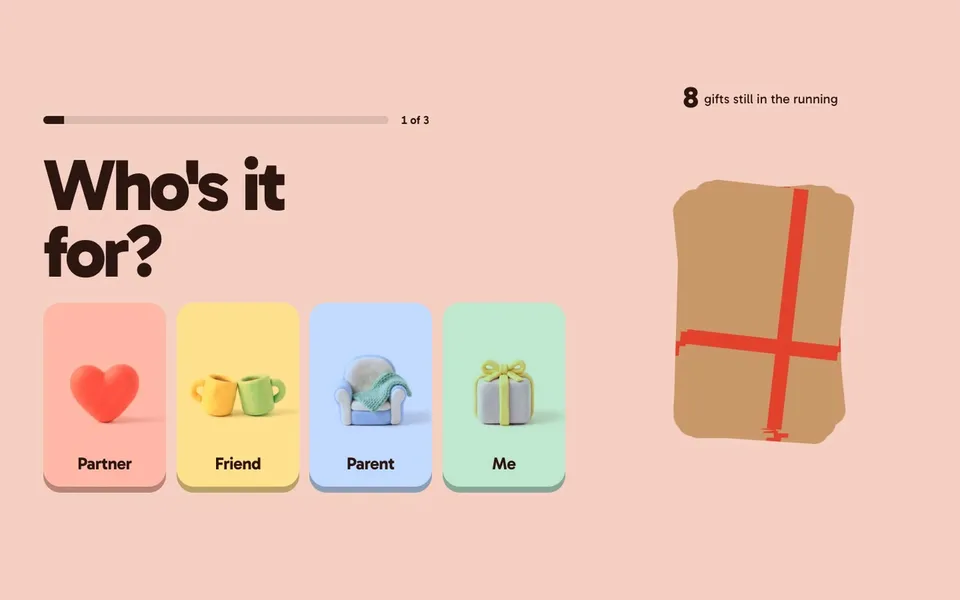
Fern & Wick can now add a finder cheaply, with no quiz logic. Collections accept filter parameters in the URL, so a form that submits to a collection lands on the filtered result. Shopify's format is filter.p.tag= for tags and filter.v.price.lte= for a maximum price, written as a plain amount in the shop's default currency rather than in cents.
{%- comment -%} Pass a collection: render 'gift-finder-form', gifts: section.settings.collection {%- endcomment -%}
<form action="{{ gifts.url }}" method="get" class="gift-finder">
  <label>
    Who is it for?
    <select name="filter.p.tag">
      <option value="florals">Someone who loves florals</option>
      <option value="woody">Someone who loves wood and smoke</option>
      <option value="new-home">A new home</option>
    </select>
  </label>
  <label>
    How much would you like to spend?
    <select name="filter.v.price.lte">
      <option value="25">Up to €25</option>
      <option value="50">Up to €50</option>
      <option value="100">Up to €100</option>
    </select>
  </label>
  <button type="submit">Show me gifts</button>
</form>
This works only under certain conditions. The filters must exist first, since Shopify says they have to be created in your admin before they can apply: set up the tag and price filters in the Search & Discovery app and make sure your theme's collection page shows filters. Test each combination, because a form can produce an empty result, so make sure no pairing dead-ends with zero products. And the price is in your default currency, so if you sell in several, write the labels in that currency or keep the finder to your main market. Hard-coded words in a snippet aren't editable either; move them to section settings if someone else will change them.
What the form can't do is weigh answers, remove choices that no longer fit, or suggest a best match. That's when a true quiz earns its place.
The details that get guides abandoned
- Put your real order-by dates for holiday delivery near the top, per region. If you don't know a carrier's cut-off yet, leave it off instead of guessing.
- Say plainly whether gift wrap, gift notes or hidden prices on packing slips are available. Shoppers who send directly to someone else want to know.
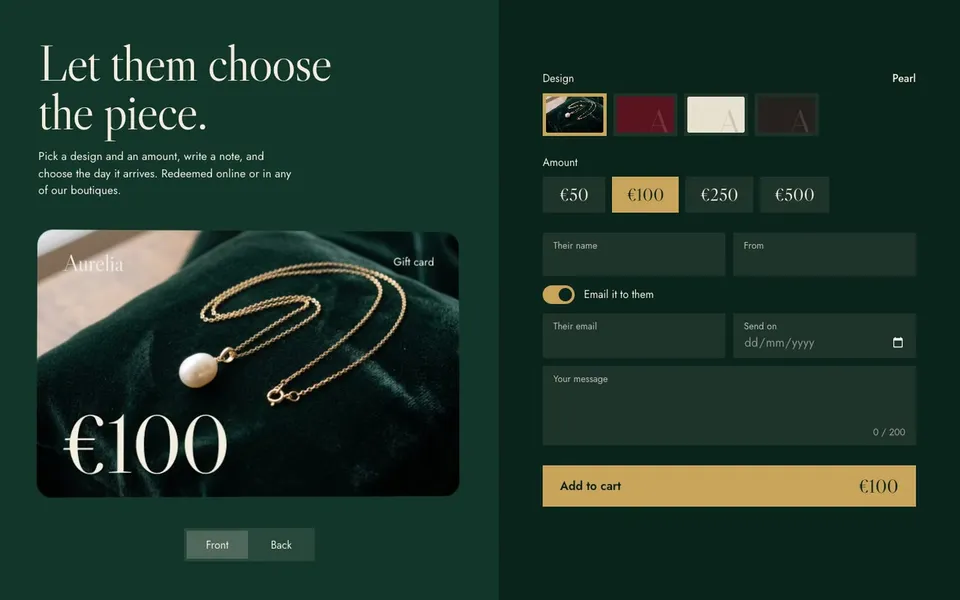
- Offer a gift card as the last tier, for anyone who gives up. Shopify gift cards are a regular product, so they can sit in a collection like any other.
- Link the guide from your navigation and home page while it's in season. A page nobody can reach won't do much, and search engines find it more easily with links pointing at it.
- Check the page on a phone with every tier filled. Twelve products in three tiers is a long scroll, and the jump links exist for that reason.
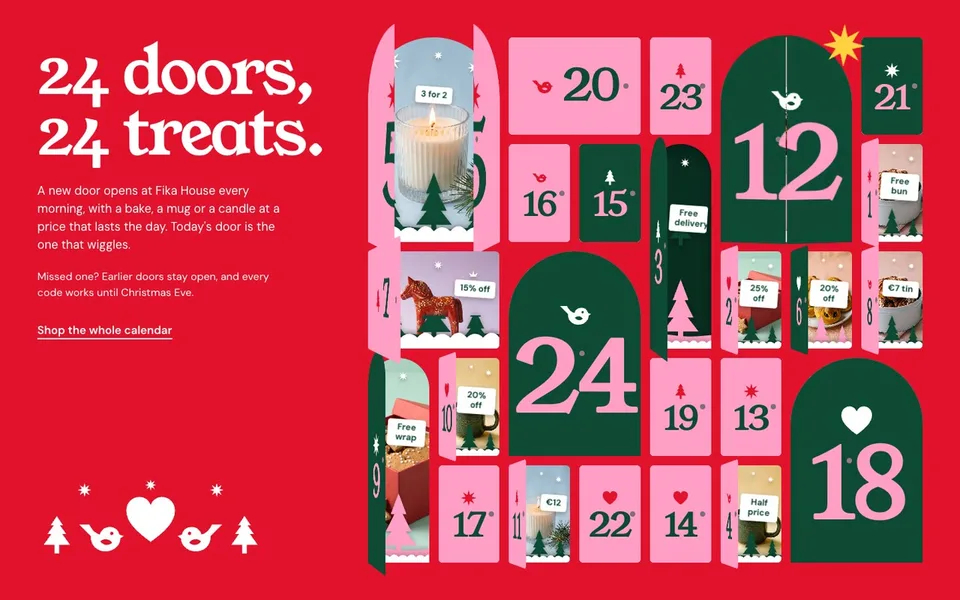
If a guide is part of a wider seasonal push, the Black Friday sections and advent calendar guides cover the pieces that come before it. When January arrives, don't delete the page. Take it out of the navigation, keep the URL, and let it wait for next year.
Questions, answered
How do I create a gift guide page on Shopify?
Create a page in Online Store › Pages, make a page template for it in the theme editor, assign the template on the page, and add sections that show collections. Using automated collections means the products update themselves.
Should a gift guide be a page, a collection or a blog post?
A page, in most cases, because it can hold several collections with copy between them. A blog post can't show live availability without extra code, and one collection can't be split into tiers.
Can I make a gift finder quiz on Shopify without an app?
Yes. A form that submits to a filtered collection needs no JavaScript and covers simple cases. A real quiz with several questions and matching logic takes a section with JavaScript, which is doable without an app. An app makes more sense if you also want to capture emails or see results reported.
Why does my gift finder show no products?
Usually the filter hasn't been created in the admin, so the URL parameter is ignored or matches nothing, or a pairing of tag and price really has no products. Open the URL for each combination and check. A tag must match exactly as it's written on the product.
When should I publish a holiday gift guide?
Well before your main shopping period, because search engines need time to find it. Since the URL stays the same each year, an established page starts with the links it already earned.