Build a door-a-day advent calendar in a Shopify section
The doors are the easy part. The hard part is deciding whose midnight opens them, and making sure a code found in the page source is useless until its day.
Key takeaways
- Everything sent to the browser can be read, so door codes stay safe only if each discount has its own start date in Shopify.
- Pick one clock: your store's, so a door and its code change together, or the shopper's, with each code active for longer than a day to cover every time zone.
new Date('2026-12-01')is midnight in UTC, which is still 30 November in New York. Compare calendar dates, as the code here does.- Don't use Liquid's
nowto decide which door is open, because a cached page can show yesterday's answer.
Picture a candle shop in New York with 24 doors and 24 discount codes, each set to start at midnight store time. The calendar uses the shopper's own clock, because that was the simplest thing to write. On 5 December a customer in Tokyo opens door 5 at breakfast. Door 5 shows DOOR05. She types it at checkout and Shopify says it isn't valid, because in New York it is still the evening of 4 December and the code starts in hours. By the time it would work, she has left, and she has written to support.
That shop is invented, but the arithmetic is real: Tokyo runs 14 hours ahead of New York in December, and every calendar built on the shopper's clock with day-long codes has this gap for somebody. The section below solves it by making the door and the code follow one clock.
First decision: whose midnight?
| Store's clock | Shopper's clock | |
|---|---|---|
| Door 5 opens | At one moment worldwide | At each shopper's own midnight, spread over about 26 hours |
| Code active dates | Exactly that day, store time | Must start a day early and end a day late |
| What a shopper may notice | In Tokyo, the door changes mid-afternoon | Nothing odd about the door. A shopper could share a code a little outside its day |
| Suits | Limited stock, a real "today only", most single-country stores | Stores selling worldwide where the ritual matters more than exact timing |
If you sell mainly in one country, use the store's clock and stop thinking about it. The section here does that with a time zone setting. For the shopper's clock, remove the timeZone option from the formatter and widen each code's active dates by a day on both sides.
The complete section
Each door is a block with its own day, image, deal text, code and link. The start date and time zone are text fields because Shopify has no date or time zone setting type. The script runs as a custom element, so it starts again by itself each time the theme editor re-renders the section, which covers what Shopify asks for on the `shopify:section:load` event.
<advent-calendar
  class="ac-{{ section.id }}"
  data-start="{{ section.settings.start_date | escape }}"
  data-zone="{{ section.settings.time_zone | escape }}"
  data-preview="{{ section.settings.preview_day }}"
  data-wait="{{ section.settings.wait_text | escape }}"
  data-copied="{{ section.settings.copied_text | escape }}"
>
  <h2>{{ section.settings.heading | escape }}</h2>
  <noscript><p>{{ section.settings.noscript_text | escape }}</p></noscript>
  <ol class="ac-grid" role="list">
    {%- for block in section.blocks -%}
      <li class="ac-door" data-day="{{ block.settings.day }}" {{ block.shopify_attributes }}>
        <button type="button" class="ac-face" aria-expanded="false" aria-controls="door-{{ block.id }}">
          <span class="ac-num">{{ block.settings.day }}</span>
          <span class="ac-note" data-note></span>
        </button>
        <div class="ac-panel" id="door-{{ block.id }}" hidden>
          {%- if block.settings.image != blank -%}
            {{ block.settings.image | image_url: width: 600 | image_tag: loading: 'lazy', widths: '300, 450, 600', sizes: '(min-width: 750px) 300px, 100vw', class: 'ac-img' }}
          {%- endif -%}
          <div>
            <p class="ac-deal">{{ block.settings.deal | escape }}</p>
            {%- if block.settings.code != blank -%}
              <button type="button" class="ac-code" data-code="{{ block.settings.code | escape }}">{{ block.settings.code | escape }}</button>
              <span class="ac-status" role="status"></span>
            {%- endif -%}
            {%- if block.settings.link != blank -%}
              <a href="{{ block.settings.link }}">{{ section.settings.shop_text | escape }}</a>
            {%- endif -%}
          </div>
        </div>
      </li>
    {%- endfor -%}
  </ol>
</advent-calendar>

<style>
  .ac-{{ section.id }} {
    display: block;
    padding: 48px 16px;
    background: {{ section.settings.ground }};
    color: {{ section.settings.ink }};
    text-align: center;
  }
  .ac-{{ section.id }} .ac-grid {
    display: grid;
    grid-template-columns: repeat(auto-fill, minmax(84px, 1fr));
    gap: 10px;
    max-width: 900px;
    margin: 24px auto 0;
    padding: 0;
    list-style: none;
  }
  .ac-{{ section.id }} .ac-door.is-open { grid-column: 1 / -1; }
  .ac-{{ section.id }} .ac-face {
    width: 100%;
    min-height: 84px;
    border: 0;
    border-radius: 8px;
    background: {{ section.settings.door }};
    color: {{ section.settings.door_ink }};
    font: inherit;
    cursor: pointer;
  }
  .ac-{{ section.id }} .ac-face[aria-disabled="true"] { opacity: .55; cursor: default; }
  .ac-{{ section.id }} .ac-door.is-today .ac-face { outline: 3px solid {{ section.settings.accent }}; outline-offset: 2px; }
  .ac-{{ section.id }} .ac-num { display: block; font-size: 24px; }
  .ac-{{ section.id }} .ac-note { display: block; font-size: 12px; }
  .ac-{{ section.id }} .ac-panel {
    display: flex;
    flex-wrap: wrap;
    gap: 16px;
    align-items: center;
    justify-content: center;
    margin-top: 10px;
    padding: 16px;
    border-radius: 8px;
    background: {{ section.settings.door }};
    color: {{ section.settings.door_ink }};
  }
  .ac-{{ section.id }} .ac-panel[hidden] { display: none; }
  .ac-{{ section.id }} .ac-img { width: min(300px, 100%); height: auto; border-radius: 6px; }
  .ac-{{ section.id }} .ac-code {
    min-height: 44px;
    margin-right: 12px;
    padding: 0 14px;
    border: 1px dashed currentColor;
    border-radius: 6px;
    background: none;
    color: inherit;
    font: inherit;
    cursor: pointer;
  }
  @media (prefers-reduced-motion: no-preference) {
    .ac-{{ section.id }} .ac-panel:not([hidden]) { animation: ac-pop .3s ease-out; }
  }
  @keyframes ac-pop {
    from { opacity: 0; transform: translateY(8px); }
  }
</style>

<script>
  if (!customElements.get('advent-calendar')) {
    customElements.define('advent-calendar', class extends HTMLElement {
      connectedCallback() {
        this.addEventListener('click', this.onClick);
        this.addEventListener('shopify:block:select', this.onSelect);
        this.draw();
        this.timer = setInterval(this.draw.bind(this), 60000);
      }
      disconnectedCallback() {
        clearInterval(this.timer);
      }
      // The day of the calendar, from calendar dates only. No hours, so no daylight saving trouble.
      today() {
        var editing = window.Shopify && Shopify.designMode;
        if (editing && +this.dataset.preview > 0) return +this.dataset.preview;
        var options = { year: 'numeric', month: '2-digit', day: '2-digit' };
        var date;
        try {
          date = new Intl.DateTimeFormat('en-CA', Object.assign({ timeZone: this.dataset.zone }, options)).format(new Date());
        } catch (e) {
          date = new Intl.DateTimeFormat('en-CA', options).format(new Date());
        }
        var a = date.split('-').map(Number);
        var b = this.dataset.start.split('-').map(Number);
        return Math.round((Date.UTC(a[0], a[1] - 1, a[2]) - Date.UTC(b[0], b[1] - 1, b[2])) / 86400000) + 1;
      }
      draw() {
        var today = this.today();
        var wait = this.dataset.wait;
        this.querySelectorAll('.ac-door').forEach(function (door) {
          var day = +door.dataset.day;
          var left = day - today;
          door.classList.toggle('is-today', left === 0);
          door.querySelector('.ac-face').setAttribute('aria-disabled', left > 0 ? 'true' : 'false');
          door.querySelector('[data-note]').textContent = left > 0 ? wait.replace('[days]', left) : '';
        });
      }
      onClick(event) {
        var face = event.target.closest('.ac-face');
        if (face && face.getAttribute('aria-disabled') !== 'true') this.toggle(face.parentElement);
        var code = event.target.closest('[data-code]');
        if (code) {
          var copied = this.dataset.copied;
          navigator.clipboard.writeText(code.dataset.code).then(function () {
            code.nextElementSibling.textContent = copied;
          });
        }
      }
      onSelect(event) {
        if (event.target.classList.contains('ac-door')) this.toggle(event.target, true);
      }
      toggle(door, force) {
        var open = force || !door.classList.contains('is-open');
        door.classList.toggle('is-open', open);
        door.querySelector('.ac-face').setAttribute('aria-expanded', open);
        door.querySelector('.ac-panel').hidden = !open;
      }
    });
  }
</script>

{% schema %}
{
  "name": "Advent calendar",
  "tag": "section",
  "max_blocks": 25,
  "settings": [
    { "type": "text", "id": "heading", "label": "Heading", "default": "Open today's door" },
    { "type": "text", "id": "start_date", "label": "Date of door 1", "default": "2026-12-01", "info": "Format: YYYY-MM-DD" },
    { "type": "text", "id": "time_zone", "label": "Time zone doors follow", "default": "America/New_York", "info": "An IANA name such as Europe/Madrid. Use your store's time zone so doors match your discount dates." },
    { "type": "range", "id": "preview_day", "label": "Preview as day (theme editor only)", "min": 0, "max": 25, "step": 1, "default": 0, "info": "0 uses the real date." },
    { "type": "text", "id": "wait_text", "label": "Locked door text", "default": "in [days] d", "info": "[days] is replaced with the days left." },
    { "type": "text", "id": "copied_text", "label": "After copying a code", "default": "Copied" },
    { "type": "text", "id": "shop_text", "label": "Link text", "default": "Shop it" },
    { "type": "text", "id": "noscript_text", "label": "Message when JavaScript is off", "default": "Our calendar needs JavaScript to open its doors." },
    { "type": "color", "id": "ground", "label": "Background", "default": "#14342b" },
    { "type": "color", "id": "ink", "label": "Text", "default": "#fff8ec" },
    { "type": "color", "id": "door", "label": "Door", "default": "#fff8ec" },
    { "type": "color", "id": "door_ink", "label": "Door text", "default": "#14342b" },
    { "type": "color", "id": "accent", "label": "Today's door", "default": "#e0a526" }
  ],
  "blocks": [
    {
      "type": "door",
      "name": "Door",
      "settings": [
        { "type": "range", "id": "day", "label": "Day", "min": 1, "max": 25, "step": 1, "default": 1 },
        { "type": "text", "id": "deal", "label": "Deal", "default": "15% off all candles today" },
        { "type": "text", "id": "code", "label": "Discount code", "info": "Set this code's active dates in Discounts." },
        { "type": "image_picker", "id": "image", "label": "Picture" },
        { "type": "url", "id": "link", "label": "Link" }
      ]
    }
  ],
  "presets": [
    {
      "name": "Advent calendar",
      "blocks": [
        { "type": "door", "settings": { "day": 1 } },
        { "type": "door", "settings": { "day": 2 } },
        { "type": "door", "settings": { "day": 3 } },
        { "type": "door", "settings": { "day": 4 } }
      ]
    }
  ]
}
{% endschema %}
To get it into a theme, follow how to add a custom section. Then add one block per day. Use Preview as day in the editor to look at any date without touching your computer's clock. The setting is read only in the theme editor, so leaving it on can't change what customers see.
Door codes: what the page can't protect
Open a calendar built this way and view its source: all 24 codes are there. Hiding future doors with JavaScript changes what shoppers see, and that's all it does. Liquid can't keep them out either, because Shopify serves cached pages and Liquid's `now` reflects when the page was last rendered, which might not be this visit. The protection has to live where the discount is checked, at checkout.
Create one code per door
In Discounts, make a code for each day that has a code. Names don't need to be secret once the dates are set. A readable
DOOR05beats a random string when a customer has to type it.Set its active dates
Give each code a start and an end. With the store's clock, use that day only. With the shopper's clock, start the code one day earlier and end it one day later.
Decide how it combines
Decide whether each code can stack with shipping or other order discounts. Being explicit here avoids one door undercutting another deal you're running.
Place a real test order
Before 1 December, make a test code live, then apply it. Then try a code whose date hasn't come and read the message a shopper would see.
The date bugs that catch people
| The code | What goes wrong | What to do instead |
|---|---|---|
new Date('2026-12-01') | A date-only string is parsed as midnight UTC. Printed in New York, that's 7pm on 30 November | Split the string and compare with Date.UTC, as today() does |
new Date().getDate() as the door number | Works in December and shows door 28 on 28 November | Count days from a stored start date |
{% if 'now' | date: '%d' == ... %} | Filters can't be used inside an if, and a value assigned first can still be stale on a cached page | Decide in the browser |
| Storing "opened" doors and trusting them | Clearing storage or switching phones forgets them, which is harmless, and setting them by hand opens nothing useful if codes are dated | Treat storage as decoration |
| Changing the device clock to open door 24 | The door opens on that device | Nothing to fix if the code isn't active yet. Don't put a surprise you care about in the markup, since a door's text and picture are readable |
That last row affects your content. If door 20's surprise is a product launch you want to keep secret, leave it out of the block until that morning, and edit the block on the day.
What this version leaves out
The code above opens a panel across the row: readable on a phone, simple to maintain, and without the hinged door animation most people picture. It doesn't remember which doors a shopper opened, shuffle doors, or show earlier deals peeking out. Adding those is mostly animation work.
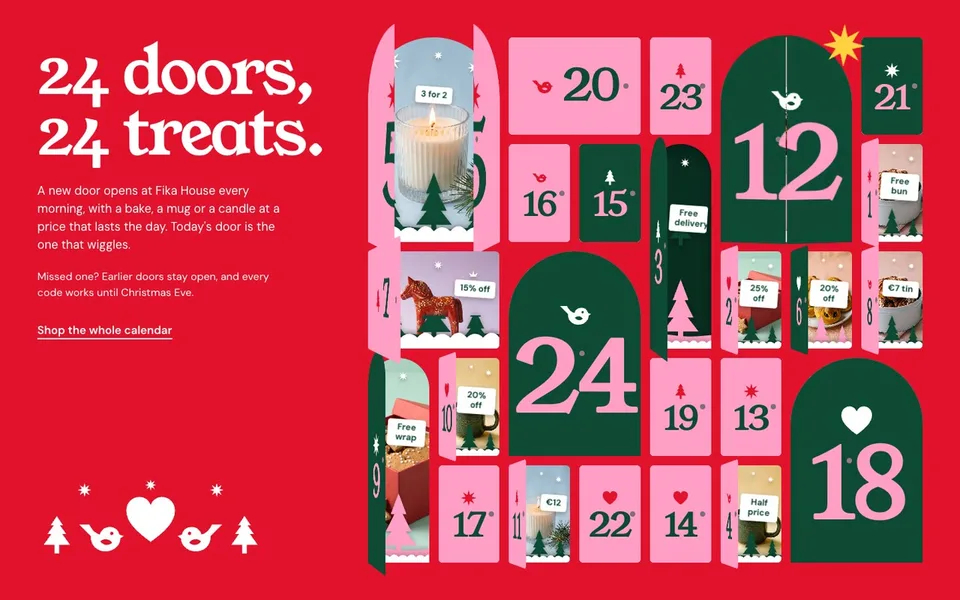
A calendar is also a commitment: 24 pieces of content in a busy month. If that's more than you can fill, a 12-day version with the same code is fine, since nothing in the section requires 24 doors. Set the first door's date to 13 December and add 12 blocks. Or run one strong offer instead:

Planning the 24 doors
- Mix door types. Twenty-four percentage discounts train people to wait, so include a free gift over a threshold, early access to a collection, a recipe or guide, and a shipping offer.
- Save the best doors for a reason to return. A strong door 1 gets people in, and something real around 12 and 18 keeps them coming back.
- Tell people the last day your delivery can reach them before Christmas, and make the doors after it digital or next-year offers.
- Decide what the section does after the last door. Hide it with the eye icon on the morning of the 25th, or the section stays up showing old deals with codes that no longer work.
- Check the stock behind every door, since a door that links to a sold-out product is worse than an empty door.
Apps are the better choice when you need things a theme section can't do alone: one-time codes generated per customer, collecting emails before a door opens, or entries stored for a prize draw. Those need a server. For doors, deals and a dated code each, this section is enough. If you want a different layout, Klorr can write one from a description, using the same one-clock approach if you ask for it.
Questions, answered
Can I add an advent calendar to Shopify without an app?
Yes. A theme section can show a door per day, reveal each door's deal when its date arrives and offer a discount code. Apps become useful when you need unique codes per customer or email capture, which require a server.
How do I stop customers using tomorrow's advent calendar code today?
Set each code's start and end dates in Discounts. The codes are in the page's HTML whatever the calendar's script does, so the date on the discount itself is what keeps tomorrow's code from working today.
Should an advent calendar use the store's time zone or the customer's?
Use the store's when codes are valid for a single day, so a door and its code change at the same moment. Use the customer's only if each code is active for longer, a day before and a day after, so nobody finds a door whose code doesn't work yet.
Can I test future doors before December?
Yes. The section here has a Preview as day setting that only takes effect in the theme editor. To test the code itself, create a test discount that is active now and apply it at checkout.
What happens to the calendar after Christmas?
Nothing, unless you act. Past doors stay openable, so hide the section with the eye icon in the theme editor on the 25th. The section and its settings stay there for next year: update the date of door 1 and the codes.