Shopify product bundles without an app: what a section can do, and where it stops
A theme section can sell a pick-your-own box and add it all to the cart in one click. It cannot change a price. The discount has to come from Shopify, and knowing that split saves you from building the wrong thing.
Key takeaways
- A section can add several variants to the cart at once through /cart/add.js, but no theme code can lower what checkout charges.
- An automatic discount with a minimum quantity on a collection covers "any 6 from this range, 15% off" with no app involved.
- Native discounts can't require one of each product, so a three-of-the-same cart also qualifies. That rule, and one-line bundles with shared stock, are where bundle apps earn their place.
- Every item in a box stays its own cart line, so stock stays correct, but nothing stops a shopper removing one item later.
Find your bundle in this table first
| What you want to sell | What does it | App needed? |
|---|---|---|
| Several products added with one button, at normal prices | A section posting to /cart/add.js | No |
| Pick any 6 from a range, 15% off | A section, plus an automatic amount-off discount with a minimum quantity | No |
| Buy this, get that one reduced | A section, plus an automatic Buy X get Y discount | No |
| Exactly A + B + C at a set price, and only that combination | A bundle product or a cart function | Yes |
| One line in the cart and on the order, with stock drawn from each component | Shopify Bundles or another bundles app | Yes |
| Tiered rules, such as 3 for 10%, 6 for 15%, 12 for 20%, inside one offer | Several discounts if they suit your combinations, otherwise a cart function | Often |
Shopify says it directly: to create product bundles as such, you need a bundles app installed. If you sell fixed sets, install Shopify's own Bundles app before writing any code. It's first-party, Shopify doesn't charge for it, it's on every plan, and it does what a section can't: fixed bundles and multipacks as real products, with component stock handled for you. It does have limits worth reading first. Bundle prices don't follow component price changes, stock isn't tracked per location, and bundled products don't appear under option filters in Search and Discovery.
A section is the better answer when shoppers choose what goes in the box and you want no extra app in the store. The rest of this guide builds that.
The one rule native discounts can't express
An amount-off discount can be automatic, can apply to specific products or collections, and can require a minimum quantity. Shopify's help is clear that when it targets specific items, only those items count toward the minimum. So "any 6 from the Snack Box collection" works properly: a sixth snack triggers it, and a T-shirt in the same cart doesn't help.
The trap is the fixed set. Suppose you target products A, B and C with a minimum of 3. Three of A also qualifies, because the rule counts items and has no idea what a set is. For a mix-and-match box that's exactly what you want. For "this serum, this cream and this cleanser together", it hands out the discount on combinations you never priced. Buy X get Y gets you closer for two-part offers, but customers must still add every item themselves, which the section below happens to do for them.
A complete build-a-box section
Each product is a block, so the merchant picks and orders the range in the theme editor. Shoppers use the plus and minus buttons until the box is full, and the button then adds everything in one request. It takes each product's first available variant and hides sold-out products, so it suits single-variant goods such as snacks, candles or soap. Products with sizes need a variant picker on each card, which is a real extra step.
{%- assign sid = 'box-' | append: section.id -%}
{% style %}
#{{ sid }} { max-width: 1100px; margin: 0 auto; padding: 48px 16px; color: {{ section.settings.text }}; }
#{{ sid }} h2 { margin: 0 0 8px; color: inherit; }
#{{ sid }} .box__intro { margin: 0; }
#{{ sid }} .box__grid { display: grid; grid-template-columns: repeat(auto-fill, minmax(165px, 1fr)); gap: 16px; list-style: none; margin: 24px 0; padding: 0; }
#{{ sid }} .box__item img, #{{ sid }} .box__item svg { display: block; width: 100%; height: auto; border-radius: 8px; }
#{{ sid }} .box__title { margin: 10px 0 2px; font-size: 15px; }
#{{ sid }} .box__price { margin: 0 0 10px; font-size: 14px; }
#{{ sid }} .box__stepper { display: flex; align-items: center; justify-content: space-between; }
#{{ sid }} .box__stepper button { min-width: 44px; min-height: 44px; font-size: 20px; line-height: 1; background: none; color: inherit; border: 1px solid currentColor; border-radius: 8px; cursor: pointer; }
#{{ sid }} .box__stepper button:disabled { opacity: .35; cursor: not-allowed; }
#{{ sid }} .box__bar { position: sticky; bottom: 0; display: flex; flex-wrap: wrap; align-items: center; justify-content: space-between; gap: 12px; padding: 14px 0; background: {{ section.settings.background }}; }
#{{ sid }} .box__status, #{{ sid }} .box__note { margin: 0; font-size: 15px; }
#{{ sid }} .box__note { font-size: 13px; }
#{{ sid }} .box__add { min-height: 48px; padding: 0 24px; font-size: 15px; border: 0; border-radius: 8px; background: {{ section.settings.accent }}; color: {{ section.settings.accent_text }}; cursor: pointer; }
#{{ sid }} .box__add:disabled { opacity: .45; cursor: not-allowed; }
#{{ sid }} .box__error { margin: 8px 0 0; font-size: 14px; }
#{{ sid }} button:focus-visible { outline: 2px solid currentColor; outline-offset: 2px; }
#{{ sid }} .box__add { transition: opacity .2s ease; }
@media (prefers-reduced-motion: reduce) { #{{ sid }} .box__add { transition: none; } }
{% endstyle %}
<div
id="{{ sid }}"
data-box
data-size="{{ section.settings.box_size }}"
data-add-url="{{ routes.cart_add_url }}.js"
data-cart-url="{{ routes.cart_url }}"
data-currency="{{ cart.currency.iso_code }}"
data-locale="{{ request.locale.iso_code }}"
style="background: {{ section.settings.background }};"
>
<h2>{{ section.settings.heading | escape }}</h2>
<p class="box__intro">{{ section.settings.intro | escape }}</p>
<ul class="box__grid">
{%- for block in section.blocks -%}
{%- assign item = block.settings.product -%}
{%- assign variant = item.selected_or_first_available_variant -%}
{%- if item != blank and item.available -%}
<li class="box__item" data-id="{{ variant.id }}" data-price="{{ variant.price }}" {{ block.shopify_attributes }}>
{%- if item.featured_image -%}
{{ item.featured_image | image_url: width: 480 | image_tag: loading: 'lazy', widths: '240, 360, 480', sizes: '(min-width: 750px) 220px, 45vw' }}
{%- endif -%}
<p class="box__title">{{ item.title | escape }}</p>
<p class="box__price">{{ variant.price | money }}</p>
<div class="box__stepper">
<button type="button" data-step="-1" aria-label="{{ section.settings.remove_label | escape }}: {{ item.title | escape }}">−</button>
<span data-qty>0</span>
<button type="button" data-step="1" aria-label="{{ section.settings.add_label | escape }}: {{ item.title | escape }}">+</button>
</div>
</li>
{%- elsif request.design_mode -%}
<li class="box__item" {{ block.shopify_attributes }}>{{ 'product-1' | placeholder_svg_tag }}</li>
{%- endif -%}
{%- endfor -%}
</ul>
<div class="box__bar">
<div>
<p class="box__status" role="status" data-status data-template="{{ section.settings.count_text | escape }}"></p>
{%- if section.settings.note != blank -%}
<p class="box__note">{{ section.settings.note | escape }}</p>
{%- endif -%}
</div>
<button type="button" class="box__add" data-add disabled>{{ section.settings.button | escape }}</button>
</div>
<p class="box__error" role="alert" data-error data-message="{{ section.settings.error_text | escape }}" hidden></p>
</div>
<script>
(function () {
function init(root) {
if (!root || root.dataset.ready) return;
root.dataset.ready = '1';
var size = +root.dataset.size;
var items = [].slice.call(root.querySelectorAll('[data-id]'));
var status = root.querySelector('[data-status]');
var add = root.querySelector('[data-add]');
var error = root.querySelector('[data-error]');
var money = new Intl.NumberFormat(root.dataset.locale, { style: 'currency', currency: root.dataset.currency });
var qty = items.map(function () { return 0; });
function draw() {
var count = qty.reduce(function (a, b) { return a + b; }, 0);
var total = qty.reduce(function (sum, q, i) { return sum + q * +items[i].dataset.price; }, 0);
items.forEach(function (item, i) {
item.querySelector('[data-qty]').textContent = qty[i];
item.querySelector('[data-step="-1"]').disabled = qty[i] === 0;
item.querySelector('[data-step="1"]').disabled = count >= size;
});
status.textContent = status.dataset.template
.replace('[count]', count)
.replace('[size]', size)
.replace('[total]', money.format(total / 100));
add.disabled = count !== size;
}
root.addEventListener('click', function (event) {
var step = event.target.closest('[data-step]');
if (!step) return;
var i = items.indexOf(step.closest('[data-id]'));
if (i > -1) { qty[i] = Math.max(0, qty[i] + +step.dataset.step); draw(); }
});
add.addEventListener('click', function () {
var boxId = Date.now().toString(36);
var lines = [];
items.forEach(function (item, i) {
if (qty[i]) lines.push({ id: +item.dataset.id, quantity: qty[i], properties: { _box: boxId } });
});
add.disabled = true;
error.hidden = true;
fetch(root.dataset.addUrl, {
method: 'POST',
headers: { 'Content-Type': 'application/json', Accept: 'application/json' },
body: JSON.stringify({ items: lines })
}).then(function (response) {
if (!response.ok) throw new Error('cart');
window.location.href = root.dataset.cartUrl;
}).catch(function () {
error.textContent = error.dataset.message;
error.hidden = false;
add.disabled = false;
});
});
draw();
}
init(document.getElementById('{{ sid }}'));
document.addEventListener('shopify:section:load', function (event) {
init(event.target.querySelector('[data-box]'));
});
})();
</script>
{% schema %}
{
"name": "Build a box",
"tag": "section",
"max_blocks": 24,
"settings": [
{ "type": "text", "id": "heading", "label": "Heading", "default": "Build your own box" },
{ "type": "text", "id": "intro", "label": "Intro", "default": "Choose any six." },
{ "type": "range", "id": "box_size", "label": "Items in a box", "min": 2, "max": 24, "step": 1, "default": 6 },
{ "type": "text", "id": "count_text", "label": "Counter", "default": "[count] of [size] chosen, [total]", "info": "[count], [size] and [total] are filled in." },
{ "type": "text", "id": "note", "label": "Offer note", "info": "Only promise a saving you have set up under Discounts." },
{ "type": "text", "id": "button", "label": "Button", "default": "Add box to cart" },
{ "type": "text", "id": "add_label", "label": "Screen reader label: add one", "default": "Add one" },
{ "type": "text", "id": "remove_label", "label": "Screen reader label: remove one", "default": "Remove one" },
{ "type": "text", "id": "error_text", "label": "Error message", "default": "We couldn't add your whole box. Please check your cart." },
{ "type": "color", "id": "background", "label": "Background", "default": "#ffffff" },
{ "type": "color", "id": "text", "label": "Text", "default": "#1a1a1a" },
{ "type": "color", "id": "accent", "label": "Button", "default": "#1a1a1a" },
{ "type": "color", "id": "accent_text", "label": "Button text", "default": "#ffffff" }
],
"blocks": [
{
"type": "item",
"name": "Product",
"settings": [
{ "type": "product", "id": "product", "label": "Product" }
]
}
],
"presets": [
{
"name": "Build a box",
"blocks": [ { "type": "item" }, { "type": "item" }, { "type": "item" }, { "type": "item" } ]
}
]
}
{% endschema %}The request itself is plain Ajax Cart API: an items array of variant ids and quantities. A few details in there are deliberate. The _box property starts with an underscore, which Shopify treats as private: hidden at checkout, visible on the order in your admin, so your packers can see which lines belong together. Some cart templates still print it unless they skip underscore keys, so check yours. It also keeps two boxes apart, because the same variant with different properties becomes a separate line.
After a successful add the section goes to the cart page, which works on every theme. Keeping shoppers on the page means refreshing your theme's own cart drawer and count, and each theme does that differently, so that part is yours to wire up.
Connect the section to a real discount
Install the section
Add it as a new section file and place it on a page. The install guide has the steps for any Online Store 2.0 theme.
Make a collection for the box
Put every product you offer in the box into one collection, then add those same products as blocks. If one is missing from the collection it won't count toward the discount, and the cart will disagree with your copy.
Create the discount
Go to Discounts, create an Amount off products discount, choose Automatic discount, set your percentage, apply it to that collection and set Minimum quantity of items to your box size.
Write the note
Fill in the section's Offer note with the words that match, such as "15% off applied in your cart". The note is the only place the section mentions a saving.
Test the awkward carts
Add a full box, then remove one item. Add two boxes. Add a box while another discount is active. Also try a request with something out of stock, as described next.
What this approach gets wrong
Because a box is several lines, shoppers can remove one item in the cart. The discount then drops off, since the minimum is no longer met, which is the right outcome but may surprise them. Nothing in Shopify treats the lines as a unit, so returns and order notes rely on that _box value.
Failed adds need testing too. Shopify's docs say that when a quantity exceeds stock, the cart adds what's available and answers with a 422 error, but they don't spell out what happens to the other items of a multi-item request. That's why the error message above tells shoppers to check their cart and doesn't claim that nothing was added. Run it on your store with a low-stock product and word the message by what you see.
Stacking also needs a decision. An automatic discount and a customer's discount code only work together if you've enabled that under Combinations, so decide before you run a promotion over the box.
If you need the bundle to be one line, need one-of-each rules, or need a cart function that merges lines, you're past what a theme can do. Shopify's Cart Transform API is the mechanism behind that kind of bundling, and functions ship inside apps. A bundles app is the honest answer there. Our app or custom section comparison goes through that wider decision.
Two ready-made versions
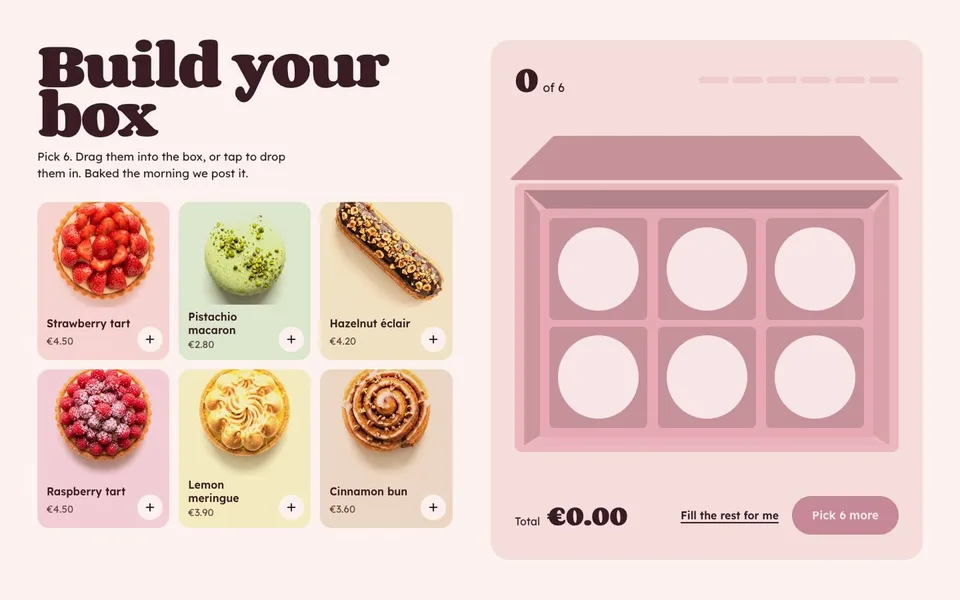

Both install as plain sections with no app. If your box has its own rules, such as a fixed first item or a variant picker on each card, you can describe it to the Shopify Liquid code generator and get the same kind of file back.
Questions, answered
Can you make product bundles on Shopify without an app?
Partly. A section can add several products to the cart at once, and an automatic discount can reduce them, so mix-and-match boxes work with no app. A bundle that exists as one product or one cart line with shared stock needs a bundles app, such as Shopify's own Shopify Bundles.
How do I add multiple products to the cart at once on Shopify?
POST to /cart/add.js with JSON containing an items array, where each entry has a variant id and a quantity. Each entry can also carry line item properties. A theme section can make that request from a single button.
Can a Shopify section apply a bundle discount?
No. Theme code can display a saving but can't change what checkout charges. Create an automatic discount in the admin and let the section describe it. Amount-off discounts support a minimum quantity on specific collections, which fits pick-any-N boxes.
How can I require one of each product for a bundle discount?
Shopify's standard discounts count quantities, so three of one product meets a minimum of three. Requiring an exact combination takes a bundles app or a custom Shopify Function.
Does a bundle built this way track inventory correctly?
Yes, since each item in the box is its own line and draws down its own stock. The tradeoff is that the lines aren't tied together in the cart, so a shopper can remove one of them.