Build a Shopify product comparison table that reads from your metafields
The table itself is the easy part. What makes one last is where the data lives, so that a spec changed on a product changes everywhere, and how it behaves on a 390-pixel screen.
Key takeaways
- Decide where specs live before you build anything. Metafields are worth the setup once you have more than one table or more than a handful of products.
- Use a real
<table>with<caption>andscopeon headers. It's the one layout where a table is exactly the right element. - On phones, keep the first column pinned and let the rest scroll sideways. Wrap it in a focusable region so keyboard users can scroll too.
- Connect a
product_listsetting to alist.product_referencemetafield and each product page can show its own comparison, from one section.
Six tests your table has to pass
Most comparison tables fail for reasons that have little to do with how they look. Run any table you already have through this list, and keep it beside you while you build a new one:
- On a phone, can you still read which product a value belongs to after scrolling? Product names sit in the header row, which scrolls away vertically on a long table, so keep rows few.
- Tab through it. Does the scroller take focus, and do links show an outline?
- Is any row the same for all products? Remove it.
- Does every product have every value? Look for "Not listed."
- Do prices match the product pages?
item.priceis the lowest variant's price, so a product with variants might deserve "from" before it (item.price_variestells you). - If you compare against other brands, can you back up each claim today? A comparison with a competitor is an advertising claim, and those specs change without telling you. Stick to your own range unless you'll keep it current.
Decide where the specs live
| Source | Setup | Update a spec | Best for |
|---|---|---|---|
| Typed into the section | None | Edit every table that mentions it | One table on one landing page, under about five products |
| Metafields on each product | Create definitions, fill in per product | Once, on the product. Every table follows | Several tables, or specs also shown on the product page |
| Metaobjects | Define an object type, then reference it | Once, on the entry | Attributes shared by many products, such as a fabric or a formula |
The typed-in approach gets dismissed too quickly. If you're comparing three mattresses on one page, it's less work, and its text can be written for the comparison instead of for a spec sheet. It starts hurting when the same weight appears on a product page, two collection landings and a comparison table, and someone updates only one of them. A wrong spec on a table is worse than no table, since it's a claim a customer relies on when they buy.

Setting up the data
List the rows that decide the purchase
Five to eight is plenty. If a row has the same answer for every product, drop it, or plan to hide it. Shoppers compare in order to find differences.
Create a definition per row
In Settings › Metafields and metaobjects › Products, add a definition per row, using a type that fits: dimension, weight, integer, true or false, or single-line text. Typed fields stop one product saying "2kg" and another "2000 g".
Fill in every product you'll compare
An empty value shows as your "not listed" text, which tells a shopper something is missing, so fill them all. Bulk editing in the admin helps here.
Optional: a compare-with list
Add a product list metafield, such as
custom.compare_with, type Product with List of products chosen. That's what will let each product page show its own table.Add the section below
Follow the install guide, then add one row block per spec and type its metafield name, such as
custom.weight.
The section
It needs no JavaScript at all. Columns come from a product list setting, capped at four, and rows are blocks. Reading the metafield is a single dynamic lookup, item.metafields[parts[0]][parts[1]], with `metafield_text` turning most types into readable strings: a dimension prints with its unit, money in your format.
{%- assign products = section.settings.products -%}
<div id="cmp-{{ section.id }}" class="cmp">
  {%- if products == blank -%}
    {%- if request.design_mode -%}
      <p>{{ section.settings.empty_hint | escape }}</p>
    {%- endif -%}
  {%- else -%}
    <h2 class="cmp__heading" id="cmp-title-{{ section.id }}">{{ section.settings.heading | escape }}</h2>
    <div class="cmp__scroll" role="region" aria-labelledby="cmp-title-{{ section.id }}" tabindex="0">
      <table class="cmp__table">
        <caption class="cmp__caption">{{ section.settings.caption | escape }}</caption>
        <thead>
          <tr>
            <td class="cmp__corner"></td>
            {%- for item in products -%}
              <th scope="col" class="cmp__product">
                <a href="{{ item.url }}">
                  {%- if item.featured_image -%}
                    {{ item.featured_image | image_url: width: 300 | image_tag:
                      loading: 'lazy',
                      widths: '150, 225, 300',
                      sizes: '160px',
                      alt: ''
                    }}
                  {%- endif -%}
                  <span>{{ item.title | escape }}</span>
                </a>
              </th>
            {%- endfor -%}
          </tr>
        </thead>
        <tbody>
          {%- if section.settings.show_price -%}
            <tr>
              <th scope="row">{{ section.settings.price_label | escape }}</th>
              {%- for item in products -%}
                <td>{{ item.price | money }}</td>
              {%- endfor -%}
            </tr>
          {%- endif -%}

          {%- for block in section.blocks -%}
            {%- assign parts = block.settings.metafield | split: '.' -%}
            <tr {{ block.shopify_attributes }}>
              <th scope="row">{{ block.settings.label | escape }}</th>
              {%- for item in products -%}
                {%- assign field = item.metafields[parts[0]][parts[1]] -%}
                <td>
                  {%- if field == blank -%}
                    <span class="cmp__none">{{ section.settings.missing_label | escape }}</span>
                  {%- elsif field.type == 'boolean' -%}
                    {%- if field.value -%}{{ section.settings.yes_label | escape }}{%- else -%}{{ section.settings.no_label | escape }}{%- endif -%}
                  {%- elsif field.type contains 'list.' and field.type != 'list.single_line_text_field' -%}
                    {{ field.value | join: ', ' | escape }}
                  {%- else -%}
                    {{ field | metafield_text | escape }}
                  {%- endif -%}
                </td>
              {%- endfor -%}
            </tr>
          {%- endfor -%}

          <tr>
            <td></td>
            {%- for item in products -%}
              <td><a class="cmp__link" href="{{ item.url }}">{{ section.settings.view_label | escape }}<span class="cmp__sr"> {{ item.title | escape }}</span></a></td>
            {%- endfor -%}
          </tr>
        </tbody>
      </table>
    </div>
  {%- endif -%}
</div>

<style>
  #cmp-{{ section.id }} { max-width: 1100px; margin: 0 auto; padding: {{ section.settings.padding }}px 20px; }
  #cmp-{{ section.id }} .cmp__heading { margin: 0 0 20px; }
  #cmp-{{ section.id }} .cmp__scroll { overflow-x: auto; -webkit-overflow-scrolling: touch; }
  #cmp-{{ section.id }} .cmp__scroll:focus-visible { outline: 2px solid currentColor; outline-offset: 2px; }
  #cmp-{{ section.id }} .cmp__table { width: 100%; min-width: 560px; border-collapse: separate; border-spacing: 0; table-layout: fixed; }
  #cmp-{{ section.id }} .cmp__caption { padding-bottom: 12px; text-align: left; font-size: 14px; }
  #cmp-{{ section.id }} th, #cmp-{{ section.id }} td { padding: 12px; border-bottom: 1px solid {{ section.settings.line }}; text-align: left; vertical-align: top; font-weight: 400; }
  #cmp-{{ section.id }} tbody th { font-weight: 600; }
  #cmp-{{ section.id }} .cmp__product a { display: block; color: inherit; text-decoration: none; font-weight: 600; }
  #cmp-{{ section.id }} .cmp__product img { display: block; width: 100%; max-width: 160px; height: auto; margin-bottom: 8px; }
  #cmp-{{ section.id }} .cmp__none { opacity: .65; }
  #cmp-{{ section.id }} .cmp__link { color: inherit; }
  #cmp-{{ section.id }} .cmp__link:focus-visible, #cmp-{{ section.id }} .cmp__product a:focus-visible { outline: 2px solid currentColor; outline-offset: 2px; }
  #cmp-{{ section.id }} .cmp__sr { position: absolute; width: 1px; height: 1px; overflow: hidden; clip-path: inset(50%); white-space: nowrap; }
  /* The first column stays put while the products scroll under it. */
  #cmp-{{ section.id }} tr > :first-child { position: sticky; left: 0; width: 130px; background: {{ section.settings.background }}; z-index: 1; }
</style>

{% schema %}
{
  "name": "Compare table",
  "tag": "section",
  "settings": [
    { "type": "text", "id": "heading", "label": "Heading", "default": "Which one is right for you?" },
    { "type": "text", "id": "caption", "label": "Table description", "default": "Compare these products side by side. On a small screen, scroll sideways to see them all." },
    { "type": "product_list", "id": "products", "label": "Products", "limit": 4, "info": "Connect a product list metafield to show different products per product page." },
    { "type": "checkbox", "id": "show_price", "label": "Show a price row", "default": true },
    { "type": "text", "id": "price_label", "label": "Price row label", "default": "Price" },
    { "type": "text", "id": "yes_label", "label": "Word for yes", "default": "Yes" },
    { "type": "text", "id": "no_label", "label": "Word for no", "default": "No" },
    { "type": "text", "id": "missing_label", "label": "Word for no value", "default": "Not listed" },
    { "type": "text", "id": "view_label", "label": "Link text", "default": "View" },
    { "type": "text", "id": "empty_hint", "label": "Hint shown only in the editor", "default": "Choose products to compare in this section's settings." },
    { "type": "color", "id": "background", "label": "Page background (for the pinned column)", "default": "#ffffff" },
    { "type": "color", "id": "line", "label": "Lines", "default": "#dddddd" },
    { "type": "range", "id": "padding", "label": "Vertical padding", "min": 0, "max": 100, "step": 4, "unit": "px", "default": 48 }
  ],
  "blocks": [
    {
      "type": "row",
      "name": "Row",
      "settings": [
        { "type": "text", "id": "label", "label": "Row name", "default": "Weight" },
        { "type": "text", "id": "metafield", "label": "Metafield", "default": "custom.weight", "info": "Namespace and key, separated by a dot." }
      ]
    }
  ],
  "presets": [
    {
      "name": "Compare table",
      "blocks": [
        { "type": "row", "settings": { "label": "Weight", "metafield": "custom.weight" } },
        { "type": "row", "settings": { "label": "Material", "metafield": "custom.material" } },
        { "type": "row", "settings": { "label": "Warranty", "metafield": "custom.warranty" } }
      ]
    }
  ]
}
{% endschema %}
What it leaves out, deliberately: an add-to-cart in each column, because most compared products have variants, and a shopper should see those on the product page. metafield_text sets a limit too. Lists other than single-line text aren't supported by that filter, so the section joins them instead, which is fine for lists of text but prints object references poorly. Rich text comes out plain, and the pinned column needs your page's background color since a transparent sticky cell lets text show through. If you use a color scheme with a gradient background, that pinned column will look off.
A different table on each product page
Here's the trick the typed-in approach can't match. Add the section to your product template and, in its Products setting, click the dynamic source icon and choose your compare_with metafield. Shopify's dynamic sources table lists product_list as compatible with list.product_reference. Now each product shows the siblings you chose for it, and a product with an empty list shows nothing to shoppers, since the empty hint only prints in the editor. One detail: the current product isn't in its own list unless you add it, so include it when you fill in the metafield.
Why this markup, and what to test
Comparison is what <table> is for, and CSS grid mimicking a table throws away the part screen readers rely on. With scope="col" and scope="row", a screen reader announces "Weight, Trail Pro" as someone moves between cells, instead of a lone "2 kg". <caption> names the table. role="region" with tabindex="0" on the scroller lets a keyboard user focus it and use the arrow keys, because otherwise a sideways-scrolling area can't be reached without a mouse or touch. More on this in accessible sections.
Don't rely on color or a lone tick to carry meaning: this section prints the words Yes and No. If you swap in icons, keep hidden text beside them.
When sideways scrolling isn't the best fit
Scrolling copes well with up to about four products. A different design works better when a shopper is choosing between exactly two things, because two columns fit a phone without scrolling at all. Two-product designs can also spend the space on something other than rows of text.
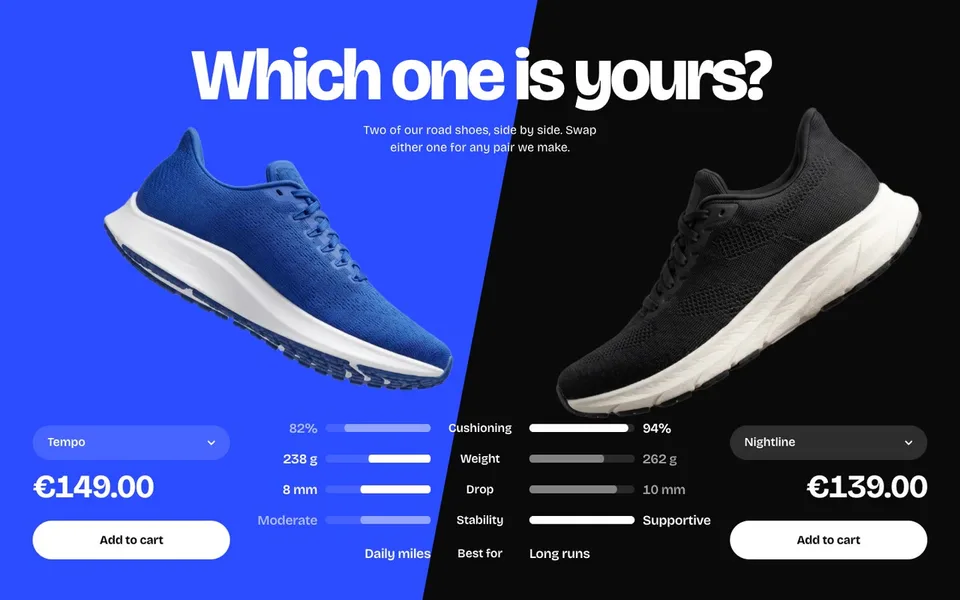
That direction setting is a good idea for any table you build. "Better" isn't always "higher", and highlighting a winner per row is only honest if the row truly has one. A longer battery isn't a win for someone who wanted the lighter product, so leave a row unmarked when the answer depends on the buyer. If you want this kind of behavior without writing it, describe it to a section generator or look through the marketplace, then check that the data source suits you.
Questions, answered
How do I add a product comparison table in Shopify without an app?
Add a section file that uses a product list setting for columns and blocks for rows, as in the code above. Filling rows from metafields means specs are maintained on the product, in one place.
Can shoppers choose which products to compare?
Not with this section, since the merchant picks the columns. A "tick to compare" feature across a catalog needs JavaScript that remembers selections and fetches product data. That's possible in a theme, and it's a common reason to choose an app when you have a large catalog.
How should a comparison table work on mobile?
Pin the first column and let products scroll sideways, in a focusable region so the keyboard can reach it. For only two products, fit both columns on screen and skip the scrolling.
Why is my metafield blank in the comparison table?
Check the namespace and key match exactly, including custom., and that the product has a value. Lists other than single-line text aren't supported by metafield_text, which is why the section handles them separately.
How many products can a comparison table show?
A product_list setting allows up to 50, but a readable table stops at about four. This section's schema caps it at four through the setting's limit.